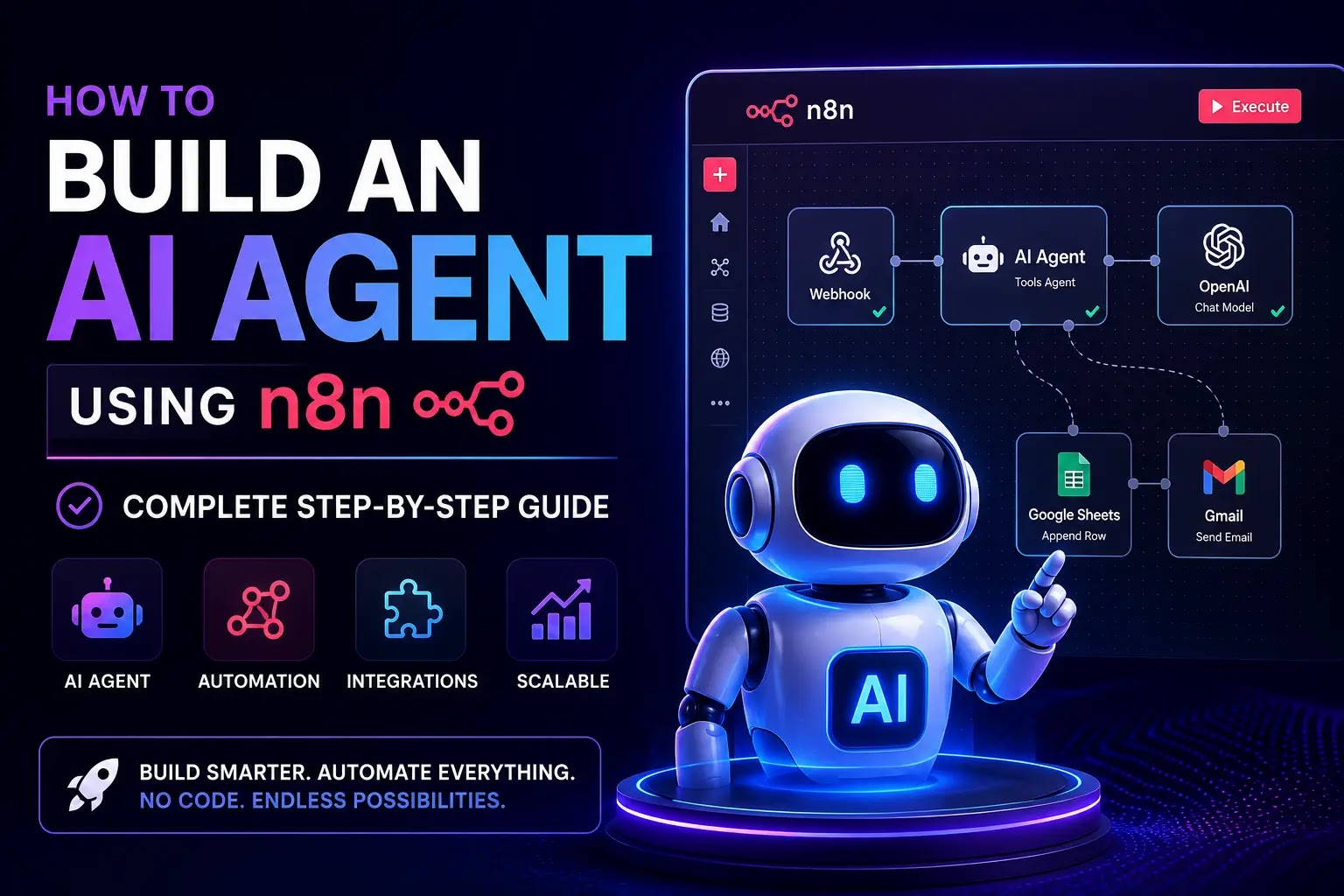
n8n (pronounced “n-eight-n”) is an open-source, low-code workflow automation platform that allows you to visually connect apps, APIs, and AI models — without writing hundreds of lines of code. Unlike many paid tools, n8n gives you full control over your data with self-hosting options, and its AI Agent node makes it uniquely powerful for building autonomous workflows.
In this complete guide, we’ll walk you through everything you need to know to build a fully functional AI agent using n8n — from setting it up to connecting AI models, adding memory, integrating tools, and deploying it for real-world use.
What Is n8n and How to Build AI Agent With n8n
n8n is a workflow automation tool that operates on a node-based visual canvas. Each “node” in n8n represents a specific action — sending an email, querying a database, calling an API, or running an AI model. You connect these nodes together to create automated workflows.
What makes n8n especially powerful for AI agents in 2026 is its native support for:
- AI Agent Node — A dedicated node for creating autonomous AI agents powered by LLMs
- LangChain Integration — Deep integration with LangChain for building advanced agentic workflows
- Memory Modules — Short-term (in-session) and long-term (persistent) memory support
- Tool Calling — Ability to give agents real-world tools like web search, calendar, email, and database access
- Self-Hosting — Run n8n on your own VPS to save costs and protect data privacy
- 400+ Integrations — Connect with Gmail, Slack, Google Sheets, Notion, Airtable, HubSpot, and more
- Webhook & Schedule Triggers — Automate agents to run on demand or on a timed schedule
For Indian businesses especially, n8n’s self-hosting option (affordable on a ₹500–₹1500/month VPS) makes enterprise-grade AI automation accessible to small and medium businesses (SMBs).
Prerequisites: What You Need Before You Start
- n8n Account — Sign up at n8n.io for cloud, or self-host on a VPS (Hostinger, DigitalOcean, AWS, etc.)
- AI Model API Key — OpenAI (GPT-4o), Anthropic (Claude), Google Gemini, or Groq API credentials
- Basic Understanding of Nodes — No coding required, but you should know how to add and connect nodes
- A Use Case in Mind — Email responder, lead qualifier, customer support bot, research assistant, etc.
Pro Tip for India: If you want to keep costs low, use Groq (free API tier) or Google Gemini Flash (free tier available) as your AI model instead of OpenAI.
Step 1: Set Up Your n8n Workspace
If you’re using n8n Cloud, just log in at app.n8n.cloud and start working from your dashboard. For self-hosting, install n8n with Docker so you get a clean, isolated setup that n8n recommends for most self-hosting needs.
For self-hosting, install Docker first, then run n8n in a container using the official image and map port 5678 so you can open it in your browser at http://localhost:5678
Once running, access your n8n instance at http://localhost:5678. You’ll see the workflow editor — a blank canvas where your AI agent will come to life.
Step 2: Create a New Workflow and Choose a Trigger
From the n8n dashboard, click “Create Workflow” and give it a meaningful name like “Customer Support AI Agent”. Every workflow needs a Trigger — the event that kicks off your agent. Common triggers include:
- Chat Trigger — for conversational AI agents (chatbots)
- Webhook Trigger — for real-time API calls from external apps
- Schedule Trigger — for agents that run automatically every hour/day/week
- Gmail / Slack Trigger — for agents that react to new emails or messages
- Manual Trigger — for testing during development
For beginners, start with a Manual Trigger or Chat Trigger to test your agent easily.
Step 3: Add the AI Agent Node
Click the + (plus) button on the canvas, search for “AI Agent”, and select the AI Agent node. Connect it to your trigger node. Inside the AI Agent node, configure three essential parts:
A. Set the System Prompt
The system prompt defines your agent’s personality, role, and rules. Example:
You are a helpful customer support agent for [Your Business Name].
Answer questions about our products, escalate complaints to humans when necessary,
and always respond in a polite and professional tone.
Do not make up information. If you don't know, say so clearly.
B. Set the User Message Source
Set “Source for prompt” to “User Message” so the agent responds to dynamic user input.
C. Enable Structured Output (Optional)
Turn on “Require Specific Output Format” and set it to JSON for machine-readable responses — especially useful when the agent output feeds into another node.
Step 4: Connect an AI Language Model — The Brain of Your Agent
Click the Chat Model connection point on the AI Agent node and add your LLM provider:
- OpenAI — GPT-4o, GPT-4o-mini (best for general reasoning)
- Anthropic — Claude 3.5 Sonnet, Claude 3 Haiku (best for long documents)
- Google Gemini — Gemini 1.5 Pro, Gemini Flash (best free tier option for India)
- Groq — LLaMA, Mixtral (ultra-fast, very affordable)
- Ollama — Run open-source models locally at zero API cost
Enter your API Key in credentials, select your model, and set Temperature: 0.3–0.7 and Max Tokens: 1000–2000 for most use cases.
Step 5: Add Memory to Your n8n AI Agent
Without memory, your AI agent forgets everything after each message. n8n supports several memory options:
Simple In-Session Memory
Add a Window Buffer Memory node connected to the AI Agent. Set the Context Window Length to 10–20 messages to keep recent conversation history in context.
Persistent Cross-Session Memory
For agents that remember users across conversations, connect n8n to external storage:
- PostgreSQL / MySQL — structured data storage
- Redis — fast key-value session memory
- Zep Memory — purpose-built AI memory management
RAG (Retrieval-Augmented Generation)
For agents that answer from your documents (FAQs, product manuals), integrate a vector database like Pinecone, Qdrant, Weaviate, or Chroma. Upload PDFs → chunk → embed → store → query during conversations.
Step 6: Give Your Agent Tools — What Makes It Truly Autonomous
Tools are what transform a basic chatbot into a true AI Agent. Click the Tools connection on the AI Agent node and add:
- Google Search / SerpAPI — real-time web search
- Gmail Tool — read, send, and organize emails
- Google Calendar — schedule, search, and create events
- Google Sheets / Airtable — read and write data
- HTTP Request Tool — call any external API
- Calculator Tool — perform math calculations
- Code Tool — execute JavaScript/Python for custom logic
- Sub-Workflow Tool — call another n8n workflow as a tool (key for modular multi-agent setups)
The agent will intelligently decide when and how to use each tool based on the user’s request — this is the “Reason + Act” (ReAct) loop at the heart of agentic AI.
Step 7: Configure Outputs and Actions
After the agent responds, route the output to where it needs to go:
- Send via Gmail — email results to a user or team
- Log to Google Sheets — record agent actions for analytics
- Post to Slack / Teams — notify your team
- Send WhatsApp / Telegram message — for customer-facing agents
- Update CRM — push data to HubSpot, Salesforce, or Zoho
- Return via Webhook — send the response back to the calling application
Step 8: Test and Refine Your Agent
- Click “Execute Workflow” to run the agent manually
- Inspect data at each node — review inputs and outputs step by step
- Test with varied inputs — edge cases, unexpected questions, errors
- Check memory behavior — does the agent remember earlier conversation context?
- Validate tool usage — does the agent invoke the right tool at the right time?
- Monitor token usage — track API costs per execution
Refining your system prompt based on test results delivers 80% of performance improvements. Treat it like code — version it and iterate.
Step 9: Set Production Safeguards
- Rate Limiting — prevent runaway API costs from infinite loops
- Error Handling — add “On Error” branches with human fallback routing
- Human-in-the-Loop — route critical decisions (refunds, complaints) to a human for approval
- Input Validation — sanitize user inputs before passing to the AI
- Output Validation — verify AI responses before taking action
- Logging — log all prompts, responses, and tool calls for debugging
- Budget Alerts — set spending limits on your AI provider accounts
Step 10: Deploy and Scale Your n8n AI Agent
- Cloud Deployment — use n8n Cloud for managed hosting
- Self-Host on VPS — deploy on Hostinger, DigitalOcean, or AWS EC2 for full data control
- Activate the Workflow — toggle to “Active” so triggers start working automatically
- Monitor Executions — use n8n’s execution history to track performance and debug
- Multi-Agent Architecture — create specialized sub-agents (Research, Writing, Data, Email) managed by an Orchestrator Agent as your needs grow
Top n8n AI Agent Use Cases for Indian Businesses in 2026
- Customer Support Agent — Auto-respond to queries via email/WhatsApp/website chat
- Lead Qualification Agent — Analyze inbound leads, score them, and update your CRM automatically
- Social Media Agent — Generate and schedule posts across platforms
- HR Recruitment Agent — Screen resumes, schedule interviews, send offer letters
- Invoice & Document Processing Agent — Extract data from PDFs and update accounting software
- Daily Research Briefing Agent — Scrape news, summarize insights, email a daily briefing
- E-commerce Order Agent — Track orders, manage returns, update customers automatically
- Content Creation Agent — Research topics, write SEO blog posts, publish to CMS.
Conclusion
Building an AI agent using n8n is one of the most practical and high-value skills of 2026. With its visual interface, powerful integrations, native AI support, and self-hosting flexibility, n8n democratizes AI automation for businesses of all sizes — especially in India where cost-efficiency is critical.
Start simple: one trigger → one AI agent node → one output. Once your first agent works, layer in memory, tools, and multi-agent architecture to tackle more complex workflows. Whether you want to automate customer support, generate content, qualify leads, or build an entire AI-powered business back-office — n8n is your platform, and now is the time to start.
Before we answer some frequently asked questions, you may also find these guides helpful:
10 AI Agents Every Business Owner Should Use in 2026
Frequently Asked Questions (FAQs)
Does n8n have AI agents?
Yes, n8n supports AI agents through its built-in AI Agent nodes and integrations with large language models such as OpenAI, Google Gemini, Anthropic Claude, and Ollama. You can build AI agents that reason, use tools, access memory, and automate complex business workflows.
Who are the big 4 AI agents?
The four leading AI agent platforms are OpenAI ChatGPT, Google Gemini, Anthropic Claude, and Microsoft Copilot. These platforms provide advanced AI capabilities for business automation, coding, customer support, and productivity.
Is n8n the best AI agent?
n8n is not an AI agent itself but an automation platform for building AI agents. It is one of the best low-code tools for creating custom AI agents because it supports hundreds of integrations, flexible workflows, and multiple AI models.
What is an AI agent in n8n?
An AI agent in n8n is an intelligent workflow that uses AI models, tools, memory, and automation to understand requests, make decisions, and perform tasks such as answering questions, processing data, and interacting with external applications.
How do I create an AI agent in n8n?
You can create an AI agent in n8n by connecting an AI model like ChatGPT or Gemini, adding tools such as HTTP requests or databases, configuring memory if needed, and building a workflow that allows the agent to complete tasks automatically.
Can n8n AI agents use ChatGPT?
Yes, n8n AI agents can use ChatGPT through the OpenAI API. This allows them to generate content, answer questions, summarize documents, analyze data, and automate customer interactions within workflows.
Can n8n AI agents use Google Gemini?
Yes, n8n supports Google Gemini integration, allowing AI agents to generate text, analyze information, and automate business processes using Google’s AI models.
What can n8n AI agents automate?
n8n AI agents can automate customer support, email responses, lead qualification, CRM updates, social media posting, content creation, report generation, document processing, and many other business workflows.
Can n8n AI agents use memory?
Yes, n8n AI agents can use short-term and long-term memory through supported memory nodes and external databases. This enables them to remember previous conversations, user preferences, and workflow context.
Is n8n better than Zapier for AI agents?
n8n is often preferred for AI agents because it offers greater flexibility, supports self-hosting, includes advanced workflow logic, and provides native AI features. Zapier is easier for beginners but has fewer customization options for complex AI automation.
Which AI models work with n8n?
n8n supports multiple AI models, including OpenAI GPT, Google Gemini, Anthropic Claude, Ollama, Mistral AI, Groq, and other models that provide compatible APIs.
Can beginners build AI agents with n8n?
Yes, beginners can build AI agents in n8n using its visual workflow editor, pre-built templates, and AI nodes. Basic knowledge of automation concepts is helpful, but coding is not required for many use cases.
Is n8n free for AI agents?
Yes, the self-hosted version of n8n is free and can be used to build AI agents. However, you may need to pay for third-party AI APIs, cloud hosting, or premium integrations depending on your setup.