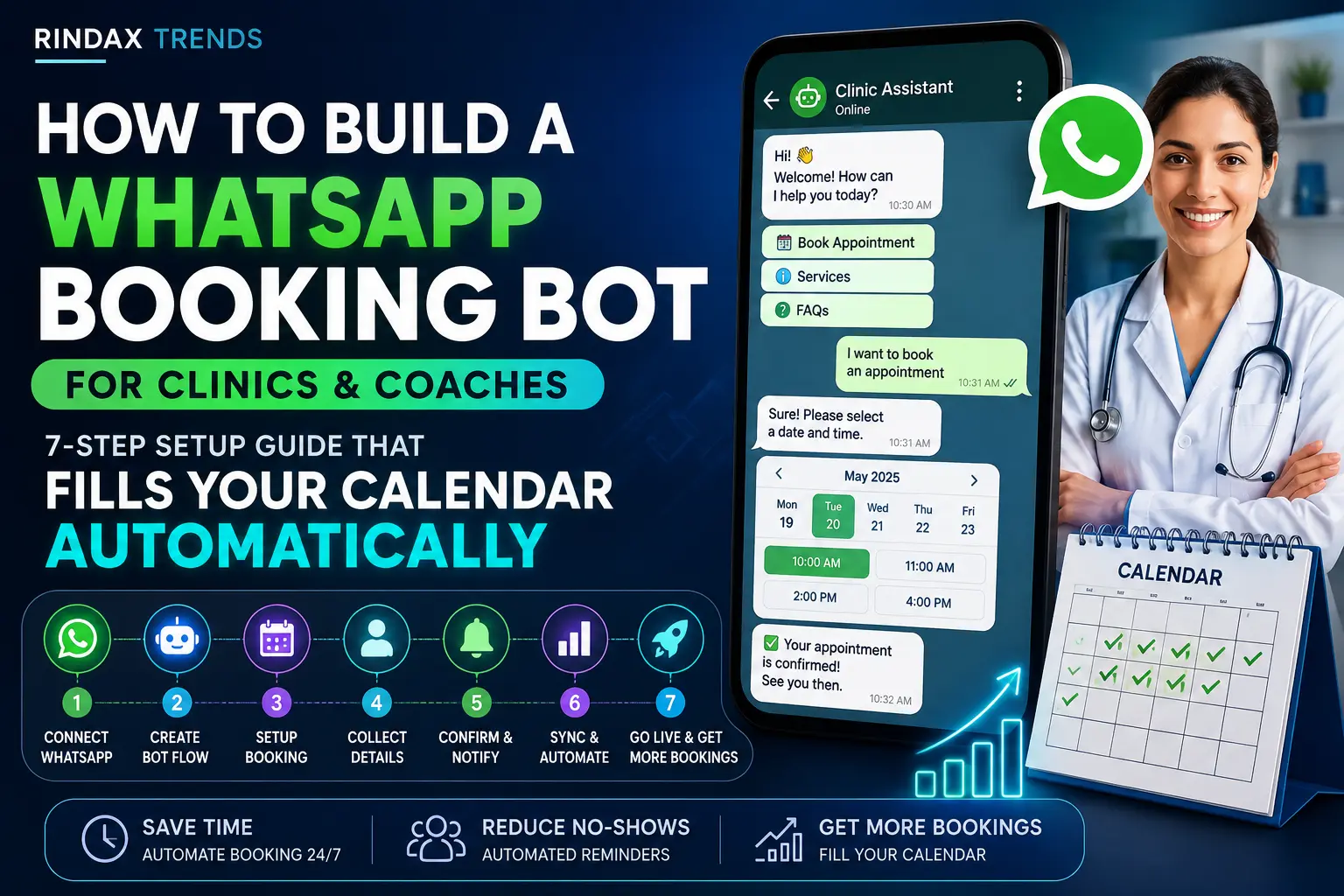
Your receptionist is managing WhatsApp messages between actual patients. A fitness coach is manually confirming session slots at 11 PM. A nutrition consultant replies to the same “What time slots are available?” question roughly forty times a week. Sound familiar?
A WhatsApp booking bot changes all of this. It handles appointment scheduling, sends reminders, collects basic information from clients, and confirms slots without you lifting a finger. And unlike a fancy website booking widget that most clients never find, WhatsApp is already where your audience lives. According to WhatsApp’s official business statistics, over 2 billion people use WhatsApp actively, and click-through rates on WhatsApp messages are significantly higher than email.
This guide walks you through the full 7-step process of building a WhatsApp booking bot specifically for clinics, coaches, and solo practitioners. No coding background required. You will need a few tools, some patience during setup, and about a weekend to get this working properly.
Why WhatsApp Beats Every Other Booking Channel for Clinics and Coaches
Most booking tools assume your clients will visit your website, click a calendar widget, and self-serve. That rarely happens in practice, especially for smaller clinics or individual coaches with a loyal but not particularly tech-forward client base.
WhatsApp is different. People already use it daily. They trust it. They respond to it. A WhatsApp booking bot meets clients exactly where they are, without asking them to download an app or remember a URL.
The practical benefits are real:
- Appointment confirmations get higher open rates on WhatsApp than any email or SMS reminder
- Clients can reschedule or cancel by replying to a message, which reduces awkward phone calls
- You can collect intake forms, health declarations, or pre-session questions automatically through the chat
- No-shows drop noticeably when the bot sends reminders 24 hours and 1 hour before the appointment
For a physiotherapy clinic or a life coach running back-to-back sessions, even saving two hours per week in scheduling admin adds up quickly.
What You Need Before You Start Building
Before jumping into the setup, get these in order:
WhatsApp Business API access: The regular WhatsApp Business app has limitations. For a proper booking bot, you need API access through a Business Solution Provider (BSP). Options include Twilio, Interakt, Wati, AiSensy, and Zoko. For smaller operations, Interakt and AiSensy tend to be more affordable and easier to set up without developer support.
A booking or calendar tool: The bot needs somewhere to check availability and create bookings. Calendly, Google Calendar with Appointy, or Zoho Bookings all work well here. If you already use a clinic management system like Practo or Meditab, check if it has API or Zapier integration.
An automation platform: This is the middleware that connects your WhatsApp API to your calendar tool. Zapier, Make (formerly Integromat), or n8n are the standard choices. n8n is the most flexible if you want to self-host and avoid per-task pricing.
A verified Facebook Business Manager account: Required to access the WhatsApp Business API. If you do not have one, create it and verify your business before starting.
Step 1: Get WhatsApp Business API Access Through a BSP
Do not try to connect directly to Meta’s Cloud API if this is your first time. Use a Business Solution Provider. They handle the approval process, maintain your API connection, and usually provide a dashboard so you can manage templates without writing code.
Sign up with your chosen BSP, submit your business documents, and wait for approval. This typically takes 2 to 5 business days. During this time, set up your Facebook Business Manager and verify your business phone number. Use a dedicated number for the bot. Do not use the same number you personally receive calls on.
Once approved, you will get API credentials: an API key, phone number ID, and access token. Store these securely. You will need them in Step 4.
Step 2: Set Up Your Calendar and Define Your Booking Logic
Before building the bot, map out your booking rules clearly. This is where most people skip ahead and regret it later.
Ask yourself:
- What services do you offer, and do they have different durations?
- What are your working hours, including buffer time between appointments?
- How many days in advance can clients book?
- Do you allow same-day bookings?
- What happens if a slot is taken while the client is mid-conversation?
Set these rules in your calendar tool first. In Calendly, for example, you can define event types, buffer times, maximum advance notice, and daily limits per service type. If you use Google Calendar, connect it to Appointy or Acuity Scheduling and configure the same parameters there.
The bot will query this calendar in real time, so the calendar must always reflect your actual availability. Block out personal time, lunch breaks, and holidays before you go live.
Step 3: Build Your Conversation Flow on Paper First
This step sounds unnecessary. It is not. Skipping it is the reason most WhatsApp bots feel robotic and frustrating to use.
Write out the full conversation the bot will have with a new client booking for the first time:
- Client sends “Hi” or “Book appointment”
- Bot greets them, asks what service they need
- Client selects service
- Bot shows available dates in the next 7 days
- Client selects date
- Bot shows available time slots for that date
- Client selects time
- Bot asks for name and contact number (or pulls it from their WhatsApp profile)
- Bot confirms booking and sends a calendar invite
- Bot mentions the cancellation or rescheduling policy
Also plan the edge cases: What if the client asks something the bot cannot answer? What if all slots are full? What if they want to speak to a human? Build fallback messages for each scenario. “I’ll connect you with our team right away” is far better than a dead end.
Step 4: Build the Bot Using Your Automation Platform
This is the technical core. Using Make or n8n, you will create a workflow that:
- Receives incoming WhatsApp messages via webhook from your BSP
- Parses the client’s intent (booking, rescheduling, cancellation, general query)
- Queries your calendar API for availability
- Sends the appropriate response back through the WhatsApp API
In n8n, this looks like a Webhook trigger node, followed by a Switch node that routes based on the message content, then a Google Calendar or Calendly node to check slots, and finally an HTTP Request node to send responses back via your BSP’s API.
For clinics using Wati or Interakt, these platforms offer a visual chatbot builder that handles some of this without writing automation logic from scratch. You can define conversation nodes, set conditions, and trigger calendar checks through their native integrations. It is slower to customize but faster to get started.
One important technical note: WhatsApp requires pre-approved message templates for outbound messages sent more than 24 hours after the client’s last message. Your booking confirmation, reminder messages, and follow-ups all need to be submitted as templates and approved by Meta before you can use them. This approval can take 24 to 48 hours, so plan for it.
Step 5: Connect Your WhatsApp Booking Bot to Your Calendar
With the automation logic built, connect it to your booking system. In Make or n8n, this typically means:
- Authenticating your Google Calendar, Calendly, or booking tool using OAuth
- Writing a query that returns available slots for a given date range
- Creating a booking event when the client confirms their slot
- Sending the client a confirmation message with date, time, service, and any preparation instructions
Test this connection with your own phone number before going live. Book a fake appointment, check that it appears in your calendar, then cancel it and check that the slot reopens. Also test what happens when you try to book a slot that is already taken.
Step 6: Set Up Automated Reminders and Follow-Ups
The WhatsApp booking bot should not go silent after confirmation. This is where the real no-show reduction happens.
Set up two reminder messages:
- 24 hours before the appointment: “Hi [Name], a reminder about your [Service] appointment tomorrow at [Time]. Reply CONFIRM to confirm or RESCHEDULE to change your slot.”
- 1 hour before: “Your appointment is in 1 hour. We are looking forward to seeing you at [Location/Link].”
You can also add a post-appointment follow-up asking for feedback or a review. Keep it short and send it 2 to 4 hours after the session. These small touches make a meaningful difference in client experience and make the practice feel professional.
All reminder messages must use pre-approved WhatsApp templates. Write them before launch and submit for Meta approval during your setup phase.
Step 7: Test Everything Before Going Live
Run a full end-to-end test with at least two different phones. Go through every possible conversation path: successful booking, failed booking because no slots are available, rescheduling, cancellation, and a message the bot does not understand.
Check that:
- Confirmations appear in your calendar instantly
- Cancellations remove the slot and free it up
- Reminder messages send at the correct times
- Fallback messages trigger correctly when the bot cannot handle a query
- The bot responds in under 5 seconds for most interactions
Once testing passes, share the WhatsApp number with a small group of existing clients before a full launch. Get honest feedback on where the conversation felt unclear or robotic, then fix those gaps before announcing it broadly.
Common Mistakes That Break WhatsApp Booking Bots
The biggest mistake is making the bot try to handle every possible question. Keep it focused. A booking bot should book, confirm, remind, and escalate complex queries to a human. The moment you try to make it answer clinical questions, handle complaints, and do bookings simultaneously, the conversation flows become impossible to maintain.
Second most common mistake: not handling time zones. If you have clients in different cities or countries, make sure your calendar tool and your bot both reference the same time zone explicitly. Confusion here leads to missed appointments and frustrated clients.
Third issue: ignoring WhatsApp template rejections. Meta is specific about what language is allowed in templates. Avoid promotional language, do not include URLs in ways that look spammy, and keep your templates functional rather than salesy. If a template gets rejected, read the rejection reason carefully before resubmitting.
Conclusion
Building a WhatsApp booking bot for a clinic or coaching practice is one of those automation projects that pays back quickly. The setup is not trivial, but it is not engineering-level difficult either. With the right BSP, a clear conversation flow, and an afternoon in Make or n8n, you can have a working bot that handles bookings around the clock without human intervention.
The clients who feel this the most are the ones who were already messaging you on WhatsApp at odd hours, waiting hours for a reply before they could confirm their slot. Now they get a response instantly. That experience makes your practice feel more organized and reliable, which is exactly the kind of trust that keeps clients coming back.
If you have already tried a generic booking widget and found that clients never used it, this approach is worth testing. The channel makes all the difference.
Before we answer some frequently asked questions, you may also find these guides helpful:
How to Build an n8n + Claude MCP Workflow: 7-Step Guide That Saves You Hours Every Week
Frequently Asked Questions
What is a WhatsApp booking bot and how does it work?
A WhatsApp booking bot is an automated system that handles appointment scheduling through WhatsApp conversations. When a client messages your business number, the bot responds automatically, shows available slots by querying your calendar, collects the client’s details, confirms the booking, and sends reminders, all without human involvement.
Do I need coding skills to build a WhatsApp booking bot?
Not necessarily. Tools like Wati, Interakt, and AiSensy offer visual chatbot builders that require no code. If you use Make or n8n for automation, the process involves configuring nodes and connections rather than writing scripts. Some technical comfort helps, but you do not need to be a developer.
Which WhatsApp BSP is best for clinics and coaches?
For solo practitioners and small clinics, Interakt and AiSensy offer affordable plans and good local support. Wati is a strong choice if you want a more complete chatbot builder. Twilio gives the most flexibility but requires more technical setup. Choose based on your budget and how much you want to configure manually.
How much does it cost to run a WhatsApp booking bot?
Costs vary. WhatsApp Business API charges per conversation (approximately INR 0.35 to 0.70 per utility conversation as of 2025 Meta pricing). BSP plans typically start from INR 2,000 to 5,000 per month. Automation platform costs add another INR 1,000 to 3,000 per month depending on usage. For most small clinics, total monthly cost stays under INR 8,000.
Can the bot handle rescheduling and cancellations?
Yes. A well-built WhatsApp booking bot can allow clients to reply with keywords like RESCHEDULE or CANCEL, which triggers a flow to either show alternate slots or remove the booking from the calendar. You need to build and test these flows specifically, as they do not come automatically with basic setups.
Will my clients find the bot confusing to use?
If the conversation flow is well-designed, most clients find it straightforward. The key is keeping the options simple and clear. Avoid making the client type long responses. Use numbered options or quick-reply buttons where your BSP supports them. Always include a fallback option to speak with a human if they are confused.
How do I get WhatsApp Business API access?
You apply through a verified Business Solution Provider. You will need a Facebook Business Manager account, a verified business name, and a phone number not already registered on WhatsApp. The approval process usually takes 2 to 5 business days. Once approved, your BSP provides the API credentials needed to build the bot.
What happens if the bot cannot answer a question?
You should build a fallback message that triggers whenever the bot receives an unrecognized input. A good fallback says something like “I am not able to help with that right now. Let me connect you with our team.” You can then set up an alert or auto-assign that conversation to a human agent in your BSP dashboard.
Can I use the same WhatsApp number for the bot and for personal communication?
No. The WhatsApp Business API requires a dedicated phone number that is not registered on regular WhatsApp or the standard WhatsApp Business app. Use a separate SIM or a virtual phone number for the bot. This is a hard technical requirement, not a preference.
How do I reduce no-shows using the bot?
The most effective approach is automated reminders. Send a confirmation message immediately after booking, a reminder 24 hours before with a confirm or reschedule option, and a second reminder 1 hour before the appointment. Research consistently shows that appointment reminder messages sent 24 hours in advance reduce no-show rates noticeably, often cutting them by 30 to 50 percent in service-based practices.