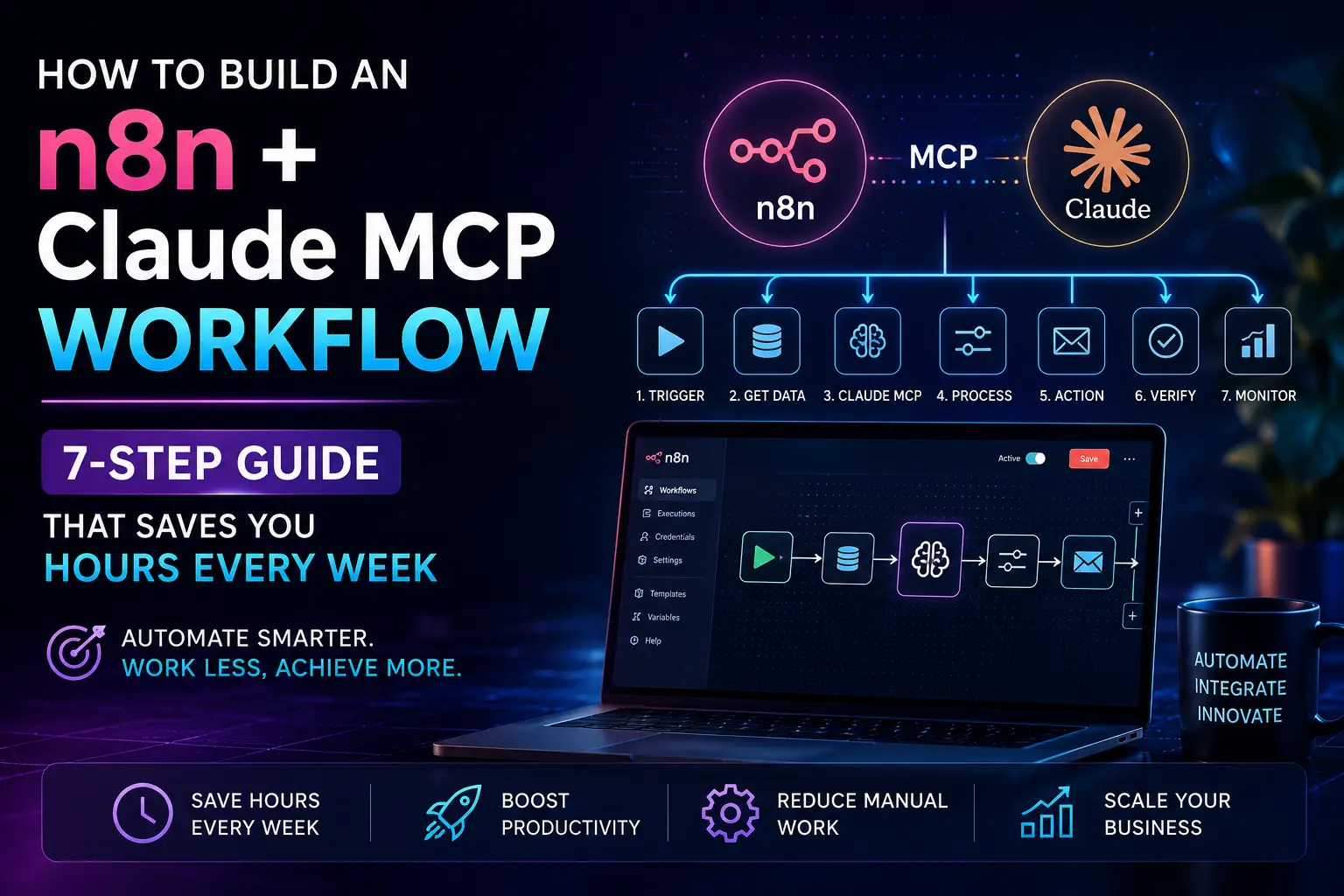
Most small business owners who discover n8n go through the same experience. They open the editor, stare at the blank canvas, drag a few nodes around, and then spend 45 minutes trying to figure out why their webhook isn’t firing correctly. It works eventually, but it takes way longer than it should.
That frustration is exactly what the n8n Claude MCP workflow setup solves. Instead of clicking through nodes manually, you describe what you want in plain English, and Claude builds the workflow for you. Not a rough draft. An actual, validated, ready-to-deploy automation.
This guide walks you through the full setup — from enabling MCP access in your n8n instance to running your first AI-built workflow. If you’ve been meaning to get serious about automation but kept hitting a wall, this is where it finally clicks.
What Is the n8n Claude MCP Workflow and Why Does It Matter?
MCP stands for Model Context Protocol. It’s a standard developed by Anthropic that lets AI models like Claude connect directly to external tools, APIs, and services. Think of it as a bridge that lets Claude “see” your n8n instance and take actions inside it.
In April 2026, n8n shipped a first-party, instance-level MCP server built directly into n8n. Unlike the MCP Server Trigger node, which exposes a single workflow as an MCP server, the instance-level server gives your AI client — Claude Desktop, ChatGPT, Cursor, or anything that speaks MCP — the ability to create, validate, test, and publish entire workflows from a plain-English prompt.
There are two different things called “MCP” in n8n, and mixing them up causes a lot of confusion early on:
The instance-level MCP server is a development tool. It lets Claude build and modify workflows inside your n8n instance. This is what you’ll use when you want Claude to create automations for you.
The MCP Server Trigger node is a runtime tool. It exposes one of your existing workflows as an MCP server so external agents can call it. Different purpose entirely.
This guide focuses on the instance-level MCP setup, which is what most small business owners actually need.
What You Need Before You Start
Before you touch any settings, make sure you have:
- n8n version 2.18.4 or higher — Cloud users already have it. Self-hosted users need to update. For self-hosted deployments, you’ll also need to set the environment variable N8N_MCP_ACCESS_ENABLED=true, available from v2.20.0.
- Claude Desktop or Claude Code — Either works. Desktop is simpler for most non-developers.
- An n8n API key — You’ll generate this inside your n8n settings.
- Owner or admin access on your n8n instance.
If you’re on n8n’s free Community Edition running locally, this works. If you’re on n8n Cloud, it’s even simpler since the MCP server is already enabled.
Step 1: Enable MCP Access in n8n
In n8n, go to Settings, then Instance-level MCP, and enable “Enable MCP access.” You need to be an owner or admin to do this.
Once enabled, n8n will generate an MCP server URL for your instance. Copy this URL — you’ll need it in the next step.
Also generate an API key from Settings > API. Create a new key, give it a descriptive name like “Claude MCP Access,” and save it somewhere secure. This key gives Claude the ability to read and write workflows, so treat it like a password.
Step 2: Connect Claude Desktop to Your n8n Instance
Open Claude Desktop and navigate to Settings > Connectors. n8n documents a straightforward path in Claude Desktop: Settings, then Connectors, then “Add custom connector,” then enter the n8n server URL, then authorize.
When prompted for credentials, paste your API key. Claude Desktop will test the connection and confirm it can reach your n8n instance.
If you’re using Claude Code instead of Claude Desktop, the setup uses a config file. Add this to your MCP configuration:
json
{
  "mcpServers": {
    "n8n": {
      "command": "npx",
      "args": [
        "mcp-remote",
        "<your-n8n-URL>"
      ]
    }
  }
}
Setup takes minutes with npx and needs no install, or you can run the Docker image for an isolated deployment. Claude handles node discovery, configuration, and validation. You own the business logic and the deploy decision.
Step 3: Test the Connection Before Building Anything
Before you ask Claude to build your first real workflow, run a quick test. Ask something simple like: “List the workflows in my n8n instance.”
If Claude can see your workflow names and statuses, the connection is working. If it throws an error, check two things: the URL format (it should include /mcp at the end for most setups) and whether your API key has the right permissions.
This test step saves you from a frustrating situation where you describe a complex workflow, Claude seems to build it, and then nothing actually gets created because the auth was silently failing.
Step 4: Describe Your First n8n Claude MCP Workflow in Plain English
This is the part that feels almost too easy once it’s working.
You describe what you want in plain English — for example, “Create a workflow that emails me today’s forecast for New York at 7am using my Gmail account.” The MCP server generates a TypeScript representation of the workflow, validates it, runs a test execution, and fixes its own errors if something breaks. You watch the whole loop happen inside your AI client.
For a small business context, here are prompts that actually work well:
Lead routing: “When a new contact fills a form on my website, check their company size via the Clearbit API and route them to HubSpot if they’re a good fit, or add them to a nurture email list if not.”
Weekly reporting: “Every Monday at 9 AM, pull last week’s sales data from my Google Sheet and send a formatted summary to my Slack channel.”
Support ticket classification: “When a new support email arrives in Gmail, classify it as billing, technical, or general using AI, then assign it to the right team member and add a priority label.”
A US-based e-commerce team used n8n-MCP to build a workflow that qualifies new leads from a Typeform, checks their company size via an API, and routes them to the right Slack channel. What would have taken a developer 4 hours took 8 minutes.
Step 5: Review the Workflow Before Deploying
This is the step most people skip, and it’s the one that matters most.
Ask Claude to show you the workflow first — approve it, then let it create. Human-in-the-loop is the whole point of doing this well.
When Claude shows you the workflow structure, look for:
- Does the trigger node match what you described?
- Are the credentials configured correctly, or are they placeholders?
- Is there error handling on steps that could fail (API calls, email sends)?
- Does the logic branch correctly if data is missing?
If the first pass gets 80% right, you iterate in the same conversation: “Make it less code-heavy, use a Set node and a Gmail template instead of a Code node.” The server updates the workflow in place. No copy-paste, no JSON handling.
This iterative loop is where the real time savings happen. You’re not rebuilding from scratch every time something’s wrong — you’re having a conversation.
Step 6: Add Credentials and Test with Real Data
Claude can build the workflow structure, but it can’t add your actual credentials — and it shouldn’t. Passwords, API keys, and OAuth tokens stay inside n8n’s credential manager.
After Claude creates the workflow, open n8n in your browser, navigate to the new workflow, and swap in your real credentials for each node that needs them. Then run a manual test with real data before you activate the workflow.
Common places where tests reveal issues:
- Gmail nodes sometimes need OAuth re-authorization after a fresh setup
- Webhook triggers need a test payload sent to them before n8n recognizes the data structure
- Date/time nodes can behave differently depending on your n8n instance’s timezone setting
Run the test, check the execution log, and if something fails, go back to Claude with the error message. Describe the error in plain English — Claude will usually diagnose it and suggest the exact fix.
Step 7: Activate and Monitor Your n8n Claude MCP Workflow
Once the test passes, activate the workflow. n8n switches it on immediately and it starts running based on your trigger.
Set a reminder to check the execution history after the first few runs. n8n’s execution log shows you every run — what data came in, what happened at each node, and whether anything failed. This is your early warning system.
When MCP n8n is properly set up, you get a tangible effect: your clients can trigger reliable workflows, your agents can use controlled tools, and your instance keeps track of every execution.
If you notice recurring failures on a specific node, take that error back to Claude and ask it to update the workflow. The n8n Claude MCP workflow setup is designed for this kind of ongoing iteration — it’s not a one-shot tool.
Real-World Use Cases That Work Right Now
Here are workflows small businesses are building with n8n-MCP today: monitoring a Google Sheet or Airtable for new rows and sending an instant Slack message to the right channel with key details; when a new blog is published, automatically posting a summary to LinkedIn, Twitter/X, and your email list including delays and formatting; and routing new support tickets to the right team member with priority flags based on AI classification of the content.
The pattern that works best for small business owners is starting with one boring, repetitive task — the thing you do every Monday morning that takes 20 minutes — and automating that first. Once you see it run without you, the possibilities start to feel real rather than theoretical.
Common Mistakes to Avoid
Using a production instance for your first tests. Start on a staging environment or a fresh n8n instance. A poorly configured workflow on a production instance can send duplicate emails or corrupt data.
Skipping the review step. The MCP workflow is in Public Preview. Claude gets workflows right most of the time, but “most of the time” isn’t good enough for something that touches your customers or finances. Always review before activating.
Not using descriptive workflow names. When Claude lists your workflows, it uses the names you’ve given them. Vague names like “Workflow 1” make it hard to manage things as your library grows. Name each workflow after what it does: “Gmail Lead Router,” “Weekly Sales Summary,” not just “Automation.”
Giving Claude write access to production too early. Start in documentation mode, then a staging instance, then production, in that order, only as you build trust.
Conclusion
The n8n Claude MCP workflow setup changes how small businesses approach automation. You no longer need a developer to build multi-step workflows. You don’t need to spend hours learning node configurations. You describe what you want, review what Claude builds, and deploy when it looks right.
That shift — from building manually to describing and reviewing — cuts the time to a working automation from hours to minutes. Even a simple workflow like triggering Slack notifications via a Webhook used to take around 30 minutes of manual work; with n8n-MCP and Claude, the same workflow takes under 5 minutes.
For any small business owner who’s been putting off automation because it felt too technical, this is the setup that finally makes it accessible. Start with one workflow. Build it today. The second one will take half the time.
Before we answer some frequently asked questions, you may also find these guides helpful:
How to Set Up an AI Phone Answering Service for Your Small Business in 7 Simple Steps
Frequently Asked Questions
What is an n8n Claude MCP workflow?
An n8n Claude MCP workflow is an automation built inside n8n using Claude AI via the Model Context Protocol. Instead of dragging and connecting nodes manually, you describe what you want in plain English and Claude builds the workflow for you, including node configuration, logic, and error handling.
Do I need to know how to code to use n8n with Claude MCP?
No coding is required. Claude handles the technical structure of the workflow. That said, a basic understanding of how n8n nodes work — triggers, actions, conditions — helps you write better prompts and catch mistakes during the review step.
Which version of n8n supports the Claude MCP integration?
You need n8n version 2.18.4 or higher for the instance-level MCP server. If you’re on n8n Cloud, it’s already available. Self-hosted users on versions below 2.20.0 may also need to set the environment variable N8N_MCP_ACCESS_ENABLED=true.
Is the n8n MCP server free to use?
The n8n MCP server feature is available on n8n Cloud, Enterprise, and the self-hosted Community Edition. n8n itself has a free Community Edition you can run locally. Claude requires a paid subscription (Claude Pro or above) for extended usage, though Claude Desktop is free to install.
Can Claude MCP workflows break my existing n8n automations?
Claude only modifies or creates workflows when you give it explicit instructions. It doesn’t automatically change existing workflows. That said, it’s best practice to start on a staging instance and move to production only after testing, especially when you’re new to the setup.
What types of automation work best with n8n Claude MCP workflows?
Multi-step automations work best — lead routing, weekly reports, support ticket classification, social media posting after a blog publish, and data sync between apps. Simple single-step automations can be built just as easily, but the real value shows up when workflows involve conditions, branching, and multiple app integrations.
How is the n8n Claude MCP workflow different from using n8n’s built-in AI assistant?
n8n has its own AI assistant in the editor that helps you configure individual nodes. The Claude MCP approach is different because Claude can manage entire workflows as part of a larger task — across multiple workflows, files, and configurations — from outside the n8n editor entirely.
Can Claude MCP workflows connect to Indian business tools like Zoho or Razorpay?
Yes. n8n supports over 400 integrations natively, including Zoho CRM, Zoho Mail, and many payment and SaaS tools. For tools without native n8n nodes, you can use the HTTP Request node to connect to any REST API. Claude can help you configure these custom API connections from a plain-English description.
What should I do if Claude builds a workflow that doesn’t work correctly?
Copy the error message from n8n’s execution log and paste it into your Claude conversation. Describe what you expected to happen versus what actually happened. Claude will usually identify the issue — a misconfigured node, a missing credential placeholder, or an incorrect data mapping — and suggest or implement a fix.
Is the n8n Claude MCP integration secure?
The integration uses your n8n API key for authentication, which you control. You can revoke the key at any time from your n8n settings. The MCP server communicates over HTTPS. For additional security, create a dedicated API key specifically for Claude access with only the permissions needed, rather than using an admin key.